Almost six years after the preview release, DDD 0.1.0 is on the PowerShell Gallery. This is the biggest update DDD has had. Out-3d has been rebuilt, and DDD now has meshes, shapes, lighting, file import/export and charts.
What is DDD?
“Cross-platform (Windows, Linux, Mac) 3D tools for PowerShell”
DDD is a PowerShell module that adds commands for working with 3D graphics. You create points, meshes, lights and charts with ordinary PowerShell commands, then pipe them to Out-3d to see them.
What’s New in 0.1.0
- Out-3d now draws in your terminal. No separate window, and it works the same on Windows, Linux and Mac.
- Meshes. Vertices, faces and colors, drawn as points, wireframe or solid.
- Primitives. Box, cube, sphere, cylinder, cone, torus, and plane, each one command.
- Classic test meshes. The Utah teapot, Blender’s Suzanne, and the Stanford bunny are built in.
- Lights and materials. Real lighting in solid mode, plus the classic Cornell box scene.
- File import/export.
.plyand.glb(glTF). - Charts. Scatter plots, bar charts, and 3D surfaces from plain PowerShell numbers.
- Keyboard controls. Rotate, zoom, switch perspective, and change render modes while it runs.
Installation
You need two things:
- PowerShell 7.6 or newer. DDD 0.1.0 is built on .NET 10, which PowerShell 7.6 uses. Install PowerShell for Windows, Mac, or Linux.
- A terminal that can draw sixel graphics. Known-good options are Windows Terminal, WezTerm, iTerm2, mlterm, and xterm started with
-ti vt340. If your terminal can’t draw sixel, Out-3d tells you so instead of printing garbage.
Then:
Install-Module DDD -Repository PSGallery
Import-Module DDD
If you already have the 0.0.7 preview installed, run Update-Module DDD instead.
Out-3d Moved Into the Terminal
In the preview, Out-3d opened a separate OpenGL window, and it only worked on Windows. Out-3d for Mac and Linux was the first item on my “What’s Next” list back then.
Out-3d now draws the scene inside your terminal using sixel graphics, a decades-old way for terminals to show pixel images. There’s no window and no graphics driver, and it runs the same code on every OS. When you exit, your terminal goes back to exactly what it showed before.
The scene slowly rotates on its own until you press a key to take over:
| Keys | Action |
|---|---|
↑/↓ | Rotate X |
←/→ | Rotate Y |
[/] | Roll Z |
+/- | Zoom in/out |
T | Resume the auto-rotate |
P | Toggle orthographic ⟷ perspective |
M | Cycle mesh render mode: points ⟷ wireframe ⟷ solid |
N | Toggle face normal indicators |
F | Toggle FPS overlay |
H | Toggle the instructions overlay |
Esc or Ctrl+C | Quit |
Out-3d also has a short alias, o3d.
Meshes
In the preview, DDD only had points. Now it has meshes: vertices (each with an optional color and normal) joined into triangular faces.
$mesh = New-Mesh
$a = $mesh.AddVertex((New-Vertex (New-Point 1 0 0) (New-Color 255 0 0)))
$b = $mesh.AddVertex((New-Point 0 1 0))
$c = $mesh.AddVertex((New-Point 0 0 0))
$mesh.AddFace($a, $b, $c)
$mesh | Out-3d -RenderMode Solid
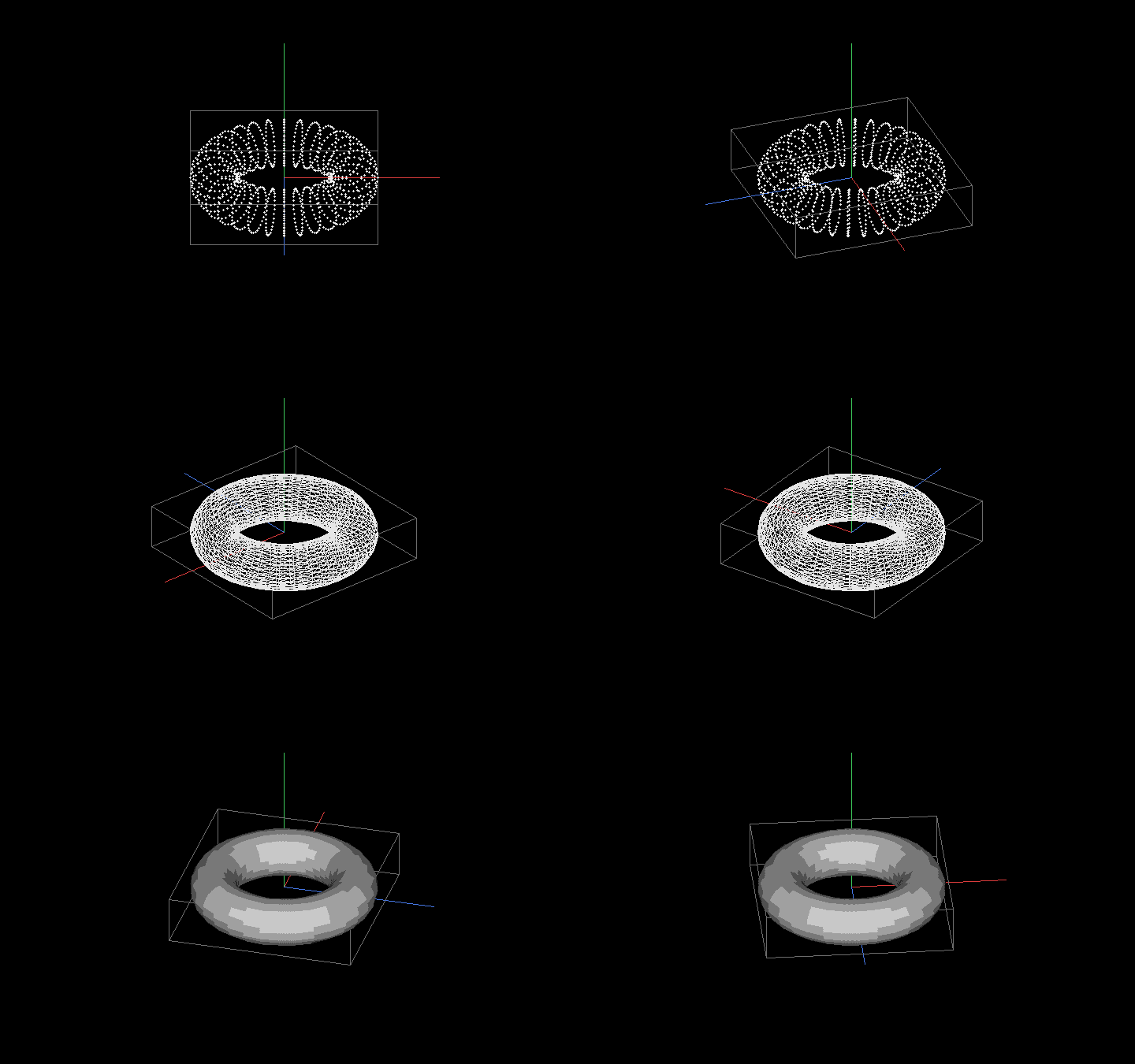
A mesh can be drawn three ways. Pick one with -RenderMode Points|Wireframe|Solid, or press M while it runs to switch:
Primitives
Common shapes are one command each. Every parameter has a default, so New-Box on its own gives you a 1x1x1 box at the origin.
New-Torus -MajorRadius 3 -MinorRadius 1 -Segments 32 | Out-3d -RenderMode Solid
Here are all seven, side by side:
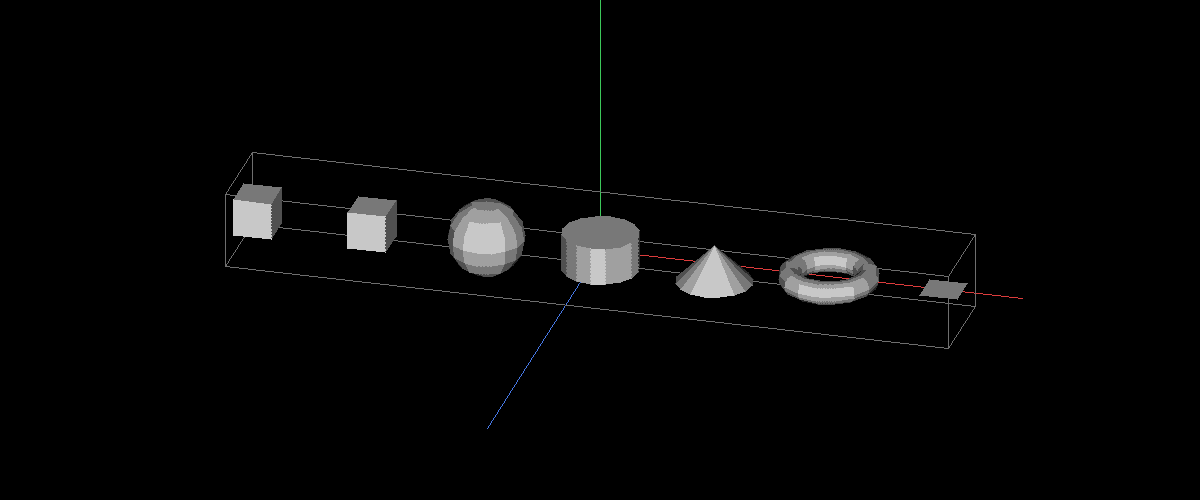
(New-Box      -Center (New-Point -9 0 0)),
(New-Cube     -Center (New-Point -6 0 0)),
(New-Sphere   -Center (New-Point -3 0 0)),
(New-Cylinder -Center (New-Point  0 0 0)),
(New-Cone     -Center (New-Point  3 0 0) -TopRadius 0),
(New-Torus    -Center (New-Point  6 0 0) -MajorRadius 1 -MinorRadius 0.3),
(New-Plane    -Center (New-Point  9 0 0)) | Out-3d -RenderMode Solid
| Cmdlet | Parameters |
|---|---|
New-Box | -Width -Height -Depth -Center |
New-Cube | -Size -Center |
New-Sphere | -Radius -Segments -Center |
New-Cylinder | -Radius -Height -Segments -Center |
New-Cone | -BaseRadius -TopRadius -Height -Segments -Center |
New-Torus | -MajorRadius -MinorRadius -Segments -Center |
New-Plane | -Width -Depth -Center |
The Teapot, Again (Plus Friends)
The preview’s last demo was a teapot. It downloaded an .obj file and used a regular expression to pull the vertices out. The teapot is now built in, along with two other famous test models from computer graphics history:
New-Teapot | Out-3d -RenderMode Solid          # the Utah teapot (Martin Newell, 1975)
New-Suzanne | Out-3d -RenderMode Solid         # Blender's monkey head
New-StanfordBunny | Out-3d -RenderMode Solid   # the Stanford bunny (1994)
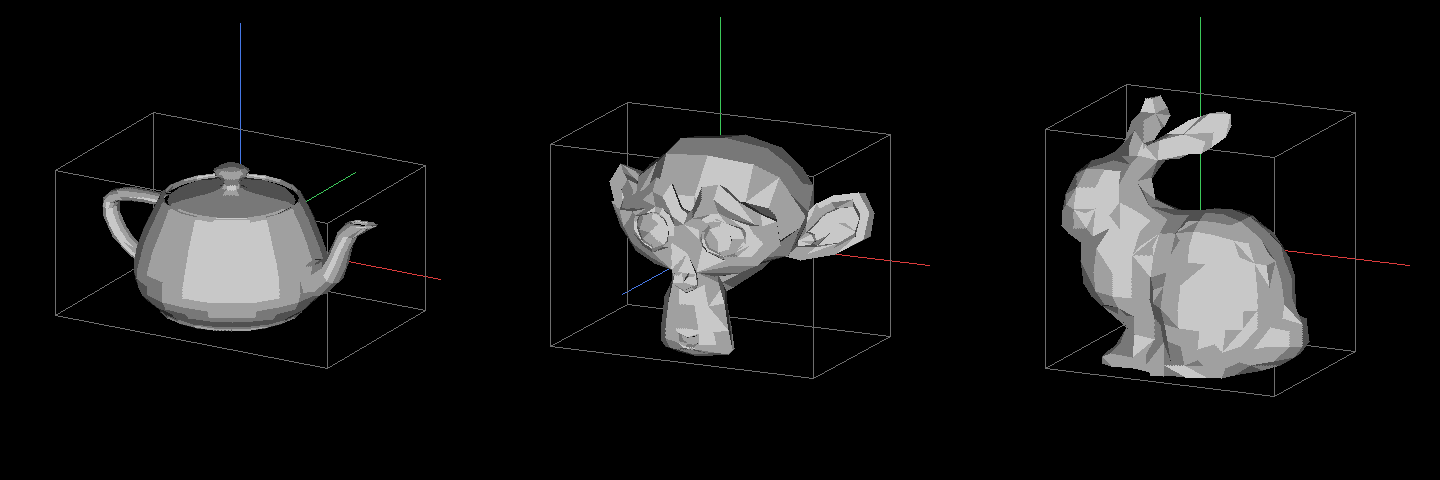
They’re bundled inside the module, so no internet connection is needed.
Lights and Materials
Solid mode shades each face with ambient, diffuse and specular light. With no lights, a default “headlamp” lights whatever faces you. Pipe in your own lights with New-Light, and give a mesh a color and shine with New-Material:
$mesh = New-Sphere
$mesh.Material = New-Material -Color (New-Color 100 150 255) -Specular 0.6 -Shininess 32
$mesh, (New-Light -Position (New-Point 2 3 2)) | Out-3d -RenderMode Solid
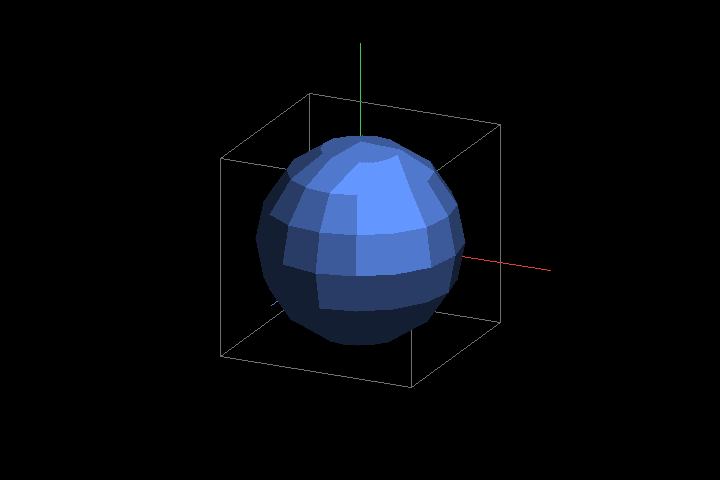
Lights can be directional (-Direction), a point in space (-Position), or aimed at a mesh (-LookAt $mesh).
For testing lights and materials, there’s the Cornell box, a classic lighting test scene with a red wall, a green wall, and two blocks:
(New-CornellBox), (New-Light -Position (New-Point 0 1.9 0) -Intensity 0.9) | Out-3d -RenderMode Solid
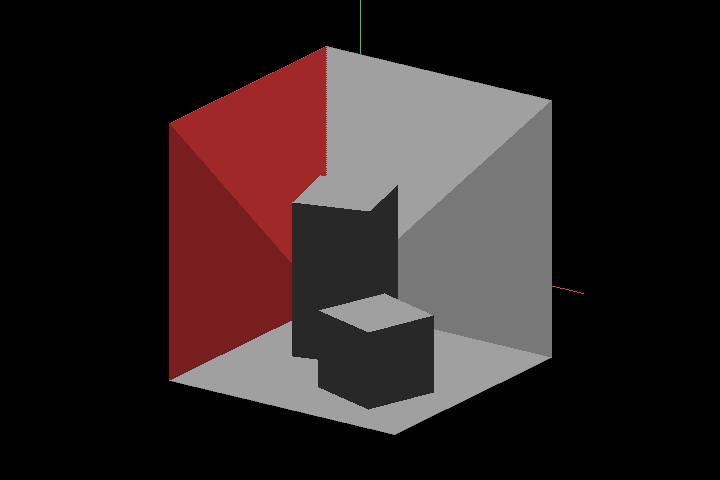
Rotate it with the arrow keys to see the green wall on the other side.
Import and Export
Two file formats are supported, both readable by most 3D tools (Blender, for example):
- PLY for single meshes:
Import-PlyandExport-Ply. Import reads both ASCII and binary files. - glTF (
.glb) for whole scenes:Import-GltfandExport-Gltf. A file can hold multiple meshes with their materials, lights, and a camera.
New-Teapot | Export-Ply -Path ./teapot.ply
Import-Ply -Path ./teapot.ply | Out-3d -RenderMode Solid

$box    = New-Box    -Center (New-Point -2 0 0)
$sphere = New-Sphere -Center (New-Point  2 0 0)
$light  = New-Light  -Position (New-Point 3 3 3)
$camera = New-Camera -Position (New-Point 0 2 6) -LookAt (New-Point 0 0 0)
$box, $sphere, $light, $camera | Export-Gltf -Path ./scene.glb
Import-Gltf -Path ./scene.glb | Where-Object { $_ -isnot [DDD.Camera] } | Out-3d -RenderMode Solid
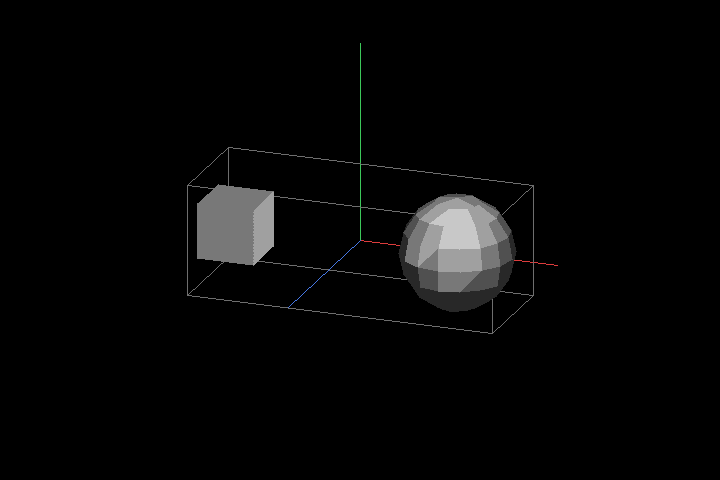
The Where-Object line is there because Out-3d doesn’t accept cameras yet, so the camera has to be filtered out before viewing. Animation isn’t imported yet either.
Charts
This is the part I’m most excited about. You can turn plain PowerShell numbers into a chart:
New-ScatterPlot -Y 3,7,2,9,5 | Out-3d
New-BarChart -Y 3,-2,5 | Out-3d -RenderMode Solid
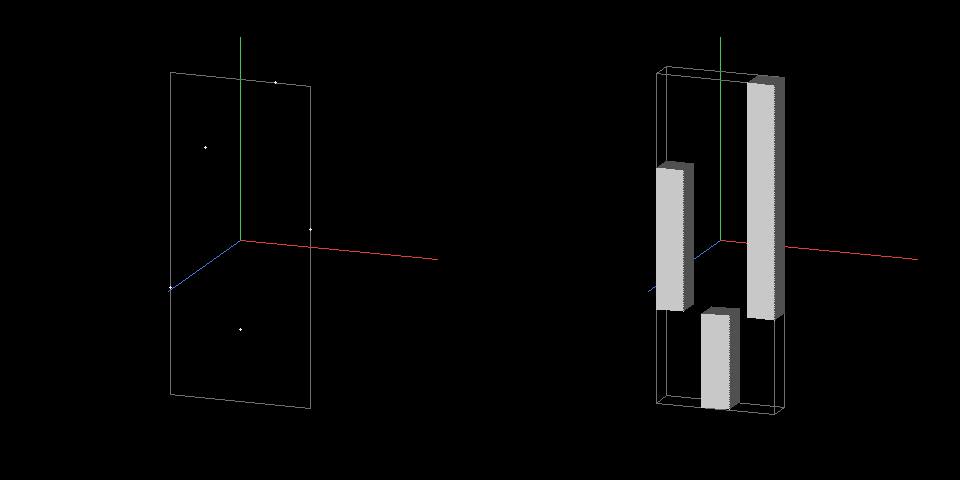
-Y is the only required parameter. -X defaults to 0, 1, 2 and so on. Out-3d already draws X and Y axis lines, so they work as the chart’s axes.
New-Surface turns a grid of heights into a 3D surface. Each inner array is one row:
$heights = @(
    @(0, 0, 0, 0, 0),
    @(0, 1, 2, 1, 0),
    @(0, 2, 4, 2, 0),
    @(0, 1, 2, 1, 0),
    @(0, 0, 0, 0, 0)
)
New-Surface -Heights $heights | Out-3d -RenderMode Solid
Heights can come from any math you can write in PowerShell. Here’s the classic “sombrero” function, sin(r)/r:
$heights = foreach ($z in -10..10) {
    ,@(foreach ($x in -10..10) {
        $r = [Math]::Sqrt($x*$x + $z*$z) / 2
        if ($r -eq 0) { 3 } else { 3 * [Math]::Sin($r) / $r }
    })
}
New-Surface -Heights $heights -XSpacing 0.5 -ZSpacing 0.5 | Out-3d -RenderMode Solid
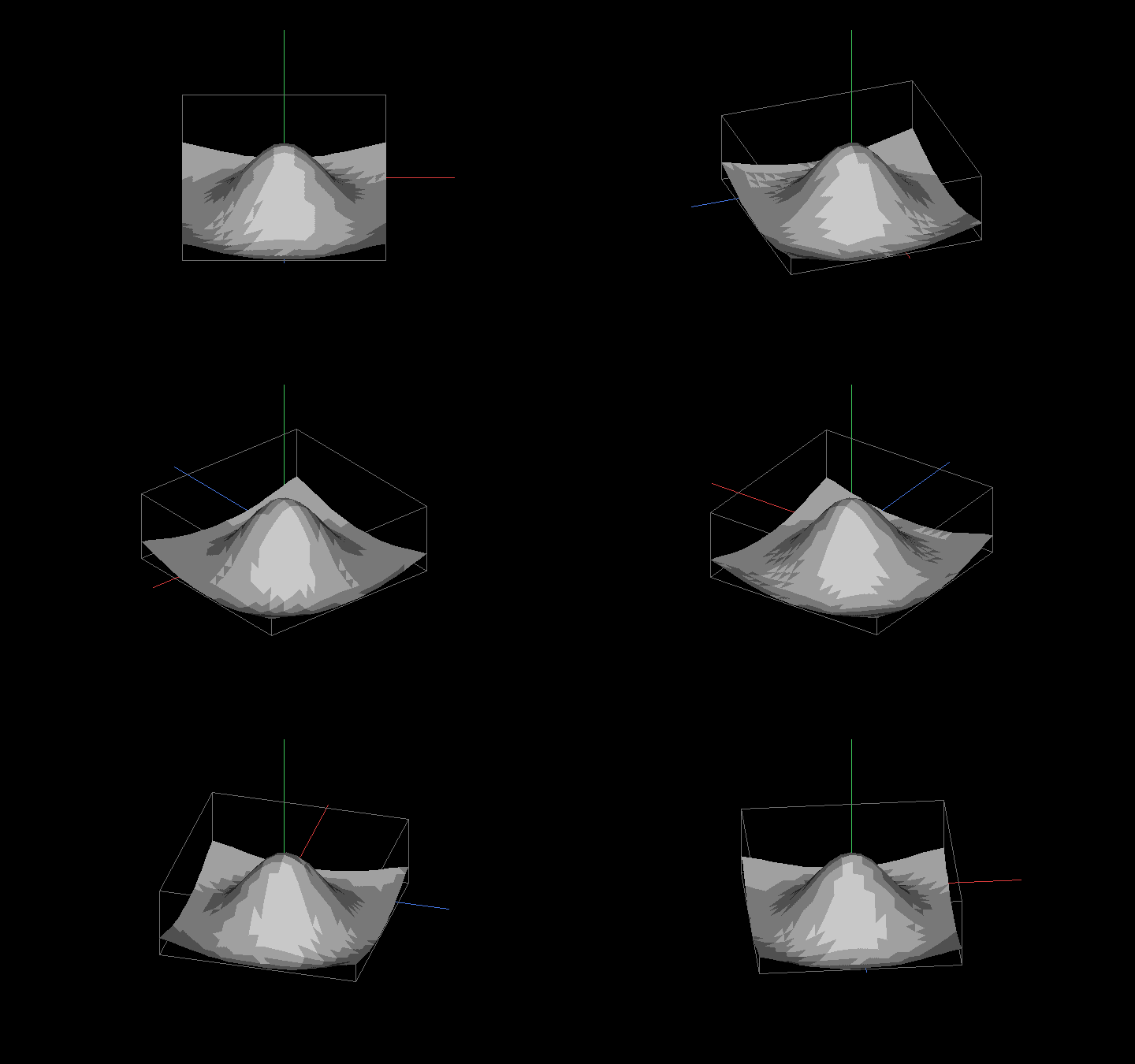
(The comma in ,@(...) stops PowerShell from flattening each row into one long list.)
What’s Next?
Back in 2020 I listed what I wanted to build next. This release covers a good part of that list: Out-3d on Mac and Linux, edges and faces, color, PLY, and glTF. Here’s what’s up next:
- Save renders as PNG. Aim the view in Out-3d, press a key, and get a full-quality image. PNGs aren’t limited to sixel’s small color palette, so this also allows smoother shading, colored lights, and new render styles like wireframe-on-solid and X-ray.
- Camera support in Out-3d. View a scene from a
New-Camerashot. - Animation. Play and export a sequence of frames (PNGs you can turn into a video).
- More charts. Line graphs, and numbers on the axes.
Source Code
The source code for DDD is on GitHub: https://github.com/lenihan/DDD
Feedback
Let me know what you think, and send me anything you make with DDD. Post in the comments or email me: me@davidlenihan.com.